

⚡ Always-On AI Assistants
🌙 What Are Always-On Assistants?
📅 As of October 2026 · this area changes almost weekly
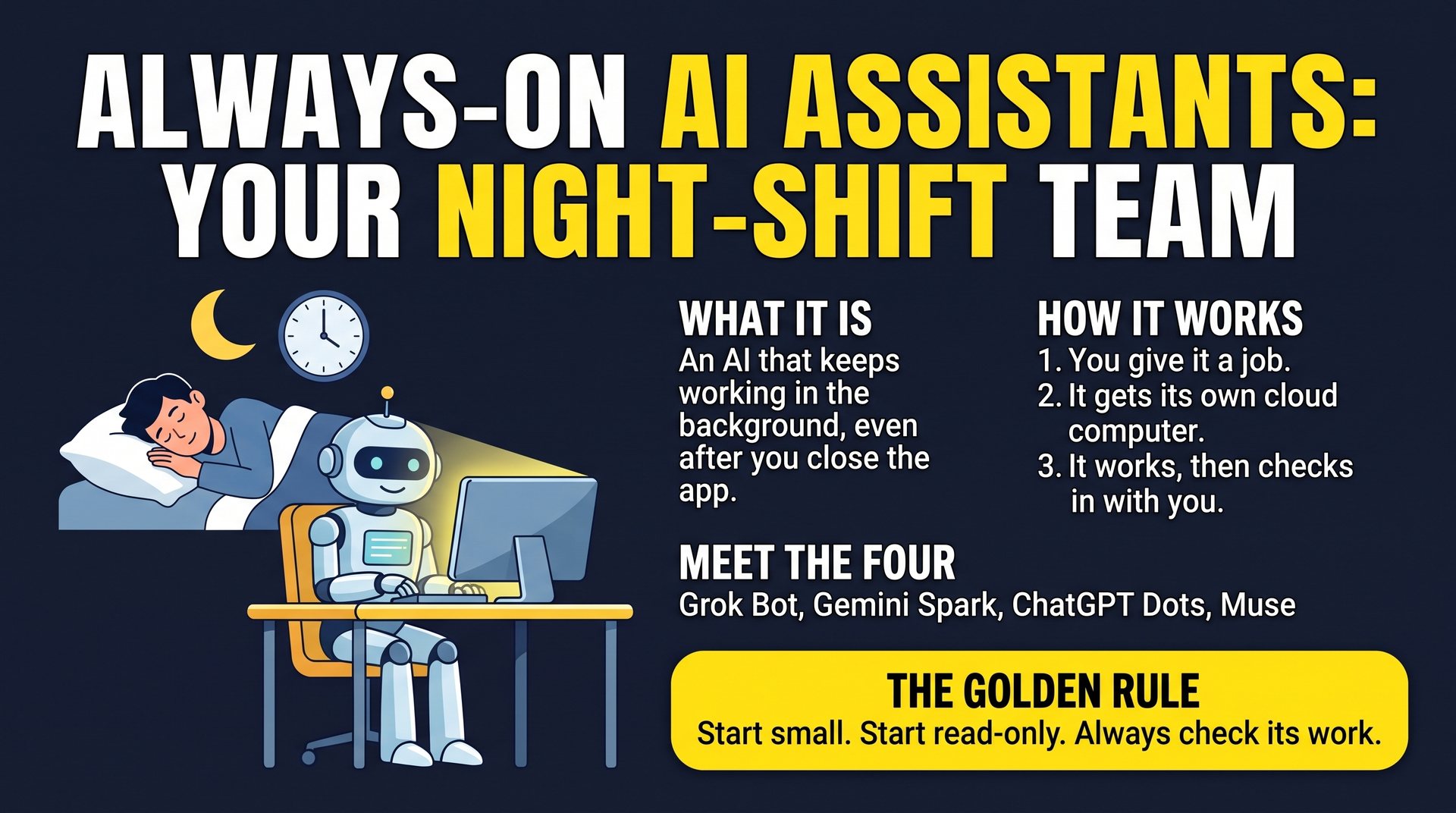
Everything you have done so far has one thing in common: you start it. You type a question, the AI answers, and when you close the tab, it stops. An always-on assistant is different. You hand it a job, close the laptop, and it keeps working, even while you sleep.
🗨️ A Chatbot
Like a consultant you call on the phone. Brilliant advice, but only while you are on the line. Hang up and they are gone. They cannot open your files, send your emails or click anything for you.
🧑💼 An Always-On Assistant
Like an employee with their own desk. They have a computer, they are signed in to your tools, and they work through a to-do list on their own. Then they leave you a note about how it went.
⚙️ How it works, in 3 steps
- You give it a job. Sometimes you describe it in plain words. Sometimes you show it once.
- It works on a computer in the cloud. A computer in a data center (a "virtual machine") with a web browser and your logins. It is never your actual PC, which is why it can keep going while yours is switched off.
- It works, then checks in. The work happens in the background. When it needs a decision (approve this, enter this code, confirm this payment) it comes back to you.
🌙 Picture a night shift
- 10:00 PMYou type: "Every weeknight, go through my inbox and have a summary waiting for me by 7 AM."
- 11:30 PMYour assistant opens email on its own computer and starts reading.
- 2:00 AMIt finds a supplier invoice. It prepares a note, but will not pay it without you.
- 6:45 AMThe summary and a few draft replies are ready.
- 7:00 AMYou wake up to a briefing, review the drafts and approve them with a tap.
An illustration of the idea, not a screenshot of any one product.
✅ Good jobs to hand over
- 🌅 Morning briefings from your calendar and email
- 🛒 Watching a price or availability and telling you when it changes
- 📝 Filling in the same form or spreadsheet again and again
- 🔎 Weekly research round-ups on a topic you follow
- ✉️ Drafting follow-up emails for you to approve
🛑 Jobs to keep for now
- 💵 Large payments
- ⚖️ Legal or medical decisions
- ↩️ Anything that cannot be undone
- 🔒 Anything involving other people's private information
⚠️ Trust, but verify
- These are real actions. Emails get sent, forms get submitted, money gets spent.
- They still make mistakes. Early reviews found missed details and invalid discount codes. Everything from Level 1 about hallucinations and healthy skepticism applies doubly here.
- Start small and start read-only. Let it look and report before you let it change anything.
- Give it only what it needs. Every login you hand over is a door you have opened.
📖 Words to know
- Agent
- An AI that does not just talk. It takes actions: clicking, typing, sending.
- Virtual machine (VM)
- A computer that lives in a data center instead of on your desk. Think of it as the assistant's own laptop.
- 2FA code
- The one-time code texted to your phone when you log in somewhere. These assistants will ask you for it, which is a good thing.
🧭 The four names to know
| Assistant | From | Where you use it | Plan needed |
|---|---|---|---|
| 🤖 Grok Bot | xAI (Elon Musk's AI company) | Grok on Mac, Windows, Linux, iPhone and Android | Any SuperGrok plan (also bundled with some Cursor plans) |
| 🔮 Gemini Spark | The Gemini app, plus its own email address | Google AI Pro or Ultra | |
| 💬 ChatGPT Dots | OpenAI | ChatGPT (web, desktop, mobile), Slack and Teams | ChatGPT Pro or Business Premium |
| ✨ Muse | Meta | muse.ai, iPhone, Android and WhatsApp | A free plan plus paid tiers |
🎯 Which one fits you?
- 📧 Live in Gmail, Google Docs and Calendar? Start with Gemini Spark.
- 💼 Your team works in Slack or Teams? Look at ChatGPT Dots.
- 🎬 Easier to show a job than to explain it? Try Grok Bot.
- 🛍️ Errands, trips and shopping from your phone? Peek at Muse.
🪤 Name trap
Muse Spark is the AI model from Meta that powers Muse. Gemini Spark is Google's assistant. Different companies, similar names, so do not mix them up when you search.
🤖 Grok Bot (xAI)
Grok Bot
"Show it once. It does the job from then on."
Grok Bot comes from xAI, the company behind the Grok chatbot. Your bots run on a cloud computer (one shared by all the bots on your account), sign in to the tools you allow, and work around the clock.
✨ Its signature trick: learning by watching
Most assistants need you to describe a job in words. Grok Bot can learn from a screen recording of you doing the job once. It watches, writes down the steps it thinks you took, and shows you those instructions to review.
Think of it like training a new hire
You say, "Watch me do this once, then it is yours." The difference is that this new hire never takes a day off.
🪜 How to teach a bot
- Pick a repetitive chore. Something you do the same way every time, such as downloading a weekly report, renaming it and emailing it to your team.
- Record yourself doing it once. Recordings can be up to 10 minutes and have no sound, so move clearly and do not skip steps. For now this works for jobs done in a web browser.
- Read the instructions it writes. Fix anything it got wrong. This is the most important step. A bot that learned a wrong step will repeat it every single time.
- Switch it on, then watch the first few runs. Trust grows from seeing it get things right.
Humans stay in the loop for the sensitive moments. The bot asks you for 2FA codes, CAPTCHAs and payments.
✅ Great for
- Repeating computer chores
- Teaching by showing instead of explaining
- Moving information between websites and apps
⚠️ Watch out
- It is an early beta, so expect rough edges. Learning from recordings is rolling out gradually
- All your bots share one computer, one set of files and one set of logins. A mistake in one can touch another's work
- Spending controls are limited: there is no per-bot spending cap, and detailed audit logs are for business (Enterprise) plans only
🧠 Think it through
- Pick one chore you do on a computer every week.
- Can you write it down in five clear steps? If you cannot, a bot will not be able to follow it either.
- What is the worst thing that could happen if the bot got a step wrong? Start with chores where the answer is "not much."
🔮 Gemini Spark (Google)
Gemini Spark
"An assistant with its own email address."
Spark lives inside the Gemini app. Switch the app over to Spark and your requests go to an agent running on a dedicated computer in Google's cloud. It is built on Gemini 3.5 and uses the same "agent engine" as Google Antigravity, which you will meet later in this level.
📬 How you hand over work
📌 Tasks: the "what"
The job itself.
"Find three quotes for a church sound system and put them in a Doc."
⏰ Schedules: the "when"
Run it once, repeat it (hourly up to yearly), or start it when something happens, such as a certain email arriving.
"Every Monday at 8 AM, summarize my week's calendar and email it to me."
If you can send an email, you can delegate
Spark has a dedicated Gmail address of its own. You can email it a request, or forward it a message, the same way you would with a human assistant.
It connects to Gmail, Docs, Sheets, Slides, Calendar and Drive (and Google Keep and Tasks since June), plus a growing list of other apps such as Canva, Instacart, OpenTable, Dropbox and Zillow, so it can read your information and act on it.
✅ Great for
- Anyone who already lives in Gmail, Docs, Calendar and Sheets
- Weekly summaries and recurring reports
- Delegating by simply sending an email
⚠️ Watch out
- An early review called it useful but imperfect: it offered an invalid promo code and missed some details (Google has since added Keep and Tasks)
- It can read your email and documents, so think about what you are comfortable sharing
- Not available in the EEA, UK, Switzerland or Nigeria
🧪 A safe first task to try
Start with something that only reads and never changes anything:
Look at my calendar for next week and write me a short briefing: what is happening each day, and anything that looks double-booked. Do not change anything. Just report back.
💬 ChatGPT Dots (OpenAI)
ChatGPT Dots
"A little worker for every job, each with its own computer."
Dots are OpenAI's always-on assistants. Each dot is one dedicated helper with its own cloud computer and browser, and it can connect to more than 4,000 apps. You might have one dot for your inbox, another for your research and a third for your weekly reports.
You reach your dots through ChatGPT (web, desktop and mobile), inside Slack and Microsoft Teams, and in a limited texting beta.
🪜 Its best idea: you choose how much freedom it gets
Dots come with Custom Rules, four levels of independence. It is a wonderful way to think about any AI agent:
- Act independently. Just do it and tell me afterwards.
- Act if pre-approved. Only the things I said yes to ahead of time.
- Ask first. Check with me before each step that matters.
- Hand off to you. Get me to the finish line, then I do the last step myself.
Start at the bottom of the list. Move up only as the assistant earns your trust. One rule never changes: password changes always stay with you.
✅ Great for
- Teams that already work in Slack or Teams
- Giving each recurring job its own dedicated helper
- People who want clear control over how independent it is
⚠️ Watch out
- It launched on September 29, 2026, so there are no independent reviews yet
- A dot cannot phone you, and it has no email address of its own
- You can only create a dot from a desktop computer
🧠 Think it through
- Imagine a dot that gathers your team's updates every Friday and posts a summary.
- Which of the four freedom levels would you pick on day one? Which after three months of good results?
✨ Muse (Meta)
Muse
"An assistant for everyday life: shopping, trips and errands."
Muse is Meta's friendly, phone-first assistant. You find it on iPhone, Android, muse.ai and WhatsApp. Meta has also shown off video conversations with an on-screen avatar and smart-glasses support, but those are still on the way.
🛍️ What makes it different: it can buy things
Where the other assistants focus on work, Muse focuses on life. It can book and buy through Stripe Link and partners such as Expedia, Instacart, Walmart, Best Buy and Sephora.
A hotel key card, not a master key
Muse works inside an isolated virtual machine with "Sentinel" permissions that separate reading from writing. It can look at your information without being able to change it, or spend your money, unless you allow it. Like a key card that opens the lobby but not every room.
🪤 Name trap, and a plot twist
- Muse Spark is Meta's AI model, and it powers Muse. It is not the same as Google's Gemini Spark.
- In late September 2026, Amazon blocked Muse from shopping on its site. Websites are allowed to say "no" to AI shoppers, and that is a good reminder that agents can only go where the doors are open.
✅ Great for
- Planning trips and booking them
- Grocery and gift shopping
- Everyday errands from your phone
⚠️ Watch out
- It can spend real money, so check before you approve a purchase
- US only for now
- Some stores, like Amazon, have shut the door on it
📝 Always-On Check-up
See how much you remember about always-on assistants.
💻 AI on Your Local Machine
🏠 Your Own AI, on Your Own Computer
📅 As of October 2026 · model names and versions change quickly
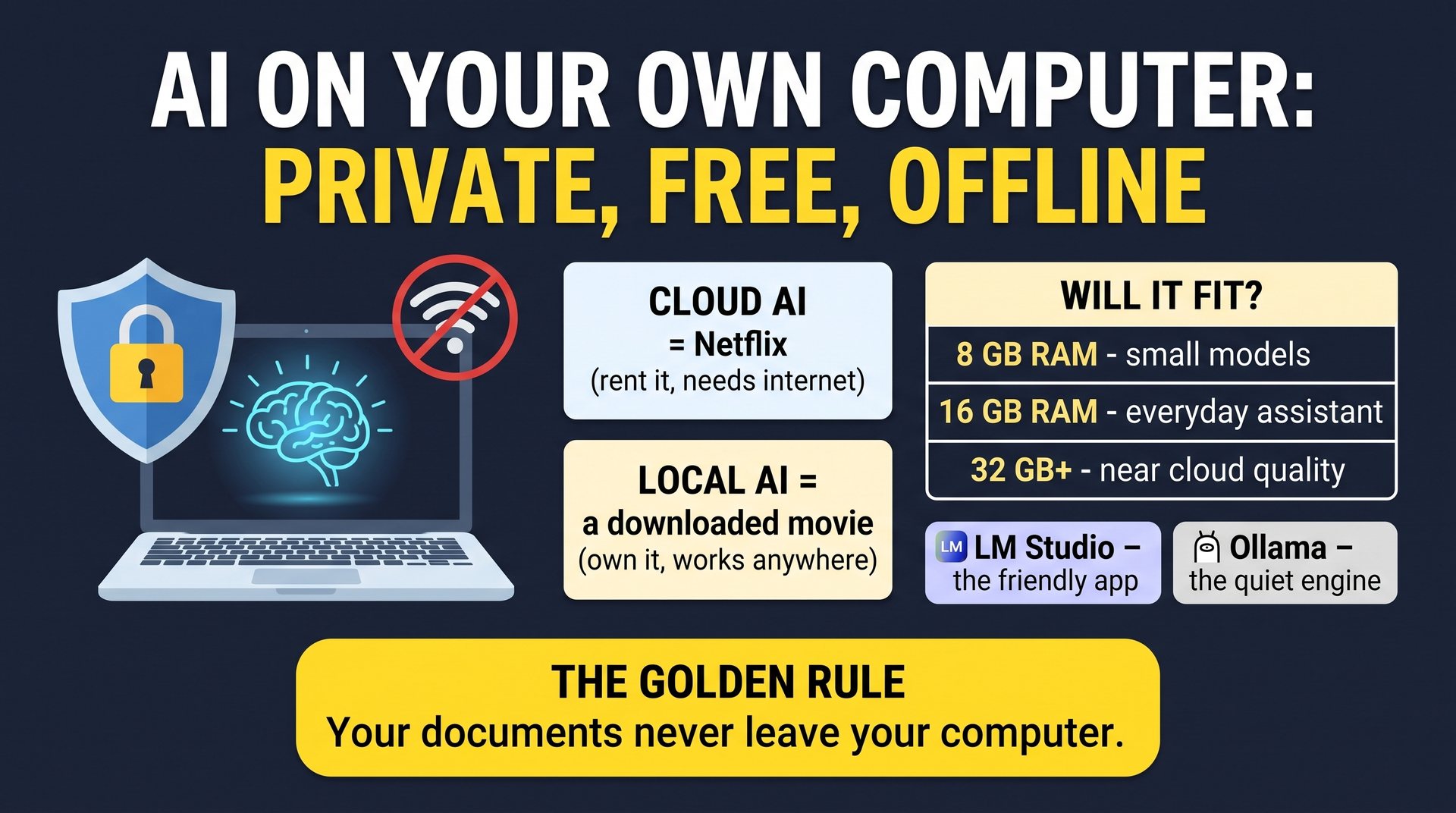
Every AI you have used so far lives in someone else's data center. When you type a question, it travels across the internet to a company's computers, and the answer travels back. In a sense, you are renting a brain.
A local AI is different. You download the brain once and run it on your own computer. No internet needed. No subscription. No company reading along.
Think of streaming versus a downloaded movie
Cloud AI is Netflix. A giant library that is always up to date, but you need internet and a subscription, and the company sees what you watch.
Local AI is a movie you downloaded. The selection is smaller, but it plays on an airplane with no Wi-Fi, and nobody knows what you are watching.
🌟 Why would anyone do this?
🔒 Total privacy
Your documents never leave your computer. Ideal for counseling notes, financial records, member lists and legal papers.
💸 Free to use
No subscription and no per-message fee. You already own the computer.
✈️ Works offline
On a plane, in a remote village, or during an internet outage.
🎛️ You are in control
You choose the model, and nobody can change it or switch it off on you.
This is the strongest answer to the worries we raised in the Privacy Concerns lesson back in Level 1.
⚖️ The honest trade-offs
- Smaller brains. The very best cloud AIs are still smarter than what fits on a normal computer. Think "very capable assistant," not "world-class expert."
- Speed depends on your computer. An older machine can feel slow.
- Big downloads. A model file is typically 2 to 20 GB or more.
- A little setup. Plan on 15 to 30 minutes the first time.
🧮 Will my computer handle it?
The size of a model is measured in "B", which means billions of settings. More settings generally means smarter, but it also needs more of your computer's memory (RAM).
| Your computer's RAM | What fits | What it feels like |
|---|---|---|
| 8 GB | Small models, about 3 to 4B | Quick answers and short summaries |
| 16 GB | Mid-size models such as Qwen3 8B (about 5 GB) or Gemma 4 12B (about 8 GB) | A solid everyday assistant |
| 32 GB or more, or a good graphics card | Large models such as gpt-oss-20b (about 14 GB) and up. It can sometimes squeeze into 16 GB, but it will be tight | Noticeably closer to cloud quality |
💡 How to check your RAM: on Windows press Ctrl + Shift + Esc, then choose Performance and Memory. On a Mac, open the Apple menu and choose About This Mac.
📖 Words to know
- Open-weight model
- An AI whose finished "brain file" is shared publicly so anyone can download it. Examples include Qwen (Alibaba), Gemma (Google) and gpt-oss (OpenAI).
- Quantization
- Shrinking a model so it fits on your computer. It works like saving a photo as a JPG: a much smaller file with only a tiny loss of quality.
- RAM
- Your computer's short-term working memory. A model has to fit inside it to run well.
🚪 Two friendly doors in
🖥️ LM Studio
A normal app with a built-in "store" for models. Point, click, chat. Best place to start.
🦙 Ollama
A quiet engine that runs in the background and powers other apps. Great for tinkerers and builders.
Both are free. The next two lessons walk through each one.
🖥️ LM Studio: The Friendly App
LM Studio
"Point, click, chat. No command line needed."
LM Studio looks and feels like a normal chat app. The big difference is the built-in model catalog, which shows you whether each model will actually fit on your computer before you download it. You can even drag in a PDF and ask questions about it.
🪜 Get started
- Download and install. Get it from lmstudio.ai. It installs like any other program.
- Find a model. Click the magnifying glass (Discover). Choose one that shows it fits your computer. On a 16 GB machine, try Qwen3 8B.
- Download it. It is several gigabytes, so this is a good time for a coffee.
- Load it and chat. Pick the model at the top of the window and type your first question.
- Chat with a document (optional). Drag a PDF into the chat and ask about it.
✈️ The Airplane Test: Try It Yourself!
Prove that your AI really is private:
- 1. Download a model in LM Studio, plus the Sample Lease Agreement from the document lesson in Level 1.
- 2. Turn your Wi-Fi off. Really.
- 3. Drag the lease into LM Studio and ask: "What are the three most unusual or risky terms in this lease?"
- 4. Compare the answer with what a cloud AI gave you. Is it slower or less detailed? Probably a little. But nothing left your computer.
✅ Great for
- Your first local AI
- Private document questions
- Browsing and comparing models visually
⚠️ Watch out
- "Fits your computer" does not mean "fast." Close other heavy programs while you chat
- Local answers will be simpler than the best cloud AIs
🦙 Ollama: The Quiet Engine
Ollama
"Runs quietly in the background, ready for anything that needs it."
Ollama is lightweight. It sits in your system tray with a small icon, and it now includes a simple built-in chat window. For people who like typing commands, it also has a command line. Best of all, many other apps can plug into it and use your local AI as their engine.
A restaurant versus its kitchen
If LM Studio is the restaurant you walk into, Ollama is the kitchen behind it: plain, fast, and other apps can place their orders.
🪜 Quick start
- Download and install. Get it from ollama.com. A small llama icon appears in your tray or menu bar.
- Open the Ollama window. Pick a model and start chatting. It downloads the model the first time you use it.
- Or use the command line (optional). Open Terminal on a Mac or PowerShell on Windows and paste this. Type
/byeto leave.
ollama run qwen3:8b
💡 Model names change often. Browse the Ollama library and copy the current name of a model that fits your computer.
⚖️ LM Studio versus Ollama
| 🖥️ LM Studio | 🦙 Ollama | |
|---|---|---|
| Feels like | A normal desktop app | A quiet engine in the background |
| Best for | Beginners who like to click | Tinkerers and builders |
| Finding models | Built-in catalog that shows what fits | Online library at ollama.com |
| Cost | Free | Free |
| Other apps can use it | Yes, through a local server | Yes, many apps plug in |
Which should I pick?
Not sure? Start with LM Studio. If you enjoy typing commands, or you want other tools to use your local AI, add Ollama. There is no rule against trying both.
📝 Local AI Check-up
Test what you learned about running AI on your own computer.
🛠️ Builder Tools
🚀 Google Antigravity
Google Antigravity
"Be the general contractor. Let AI be the crew."
📅 As of October 2026 · features and limits change often
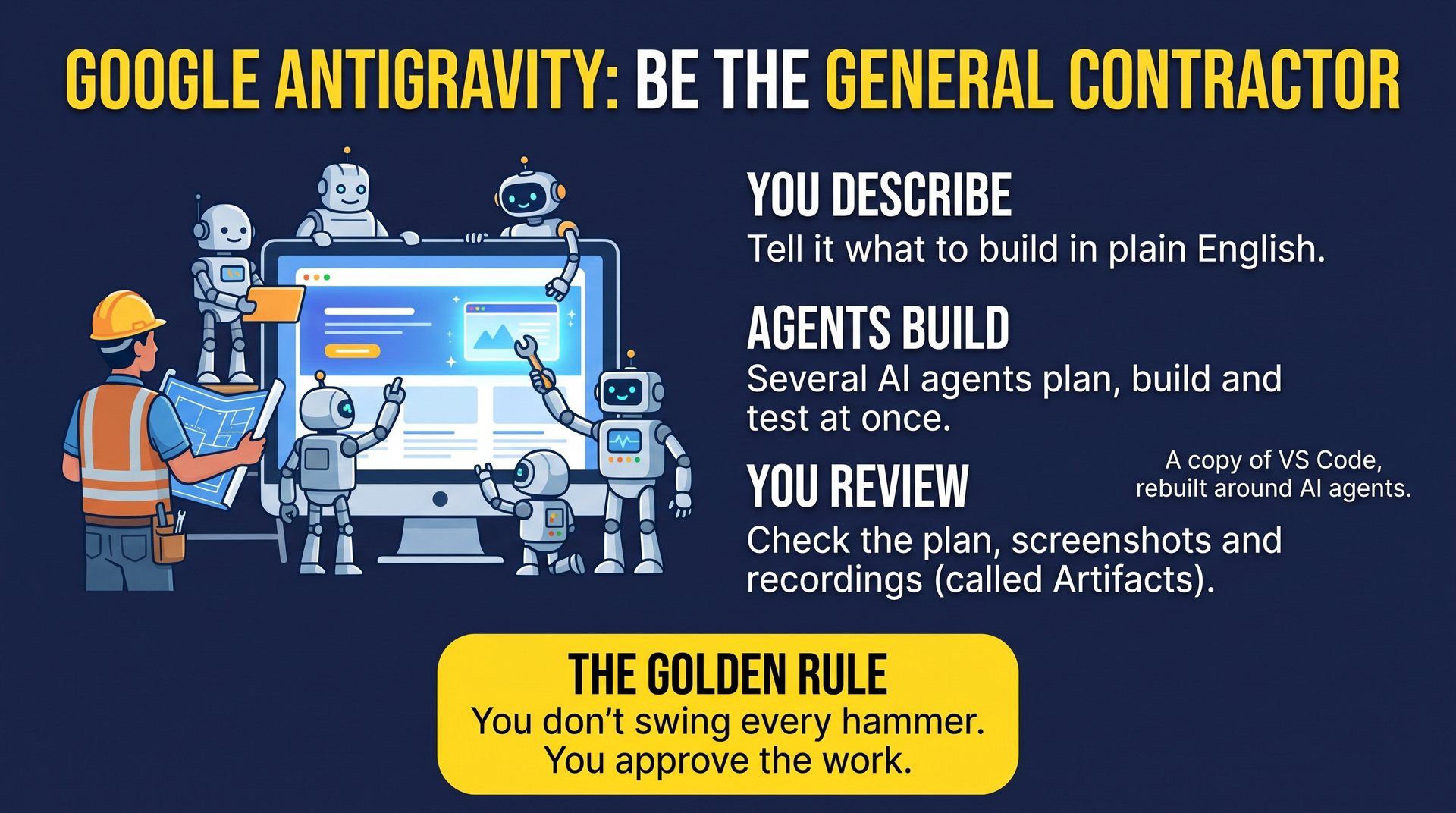
Antigravity is a workshop for building software with AI agents. You describe what you want in plain English. A team of AI helpers plans it, builds it, tests it and shows you proof that it works. (Google offers a few versions: the Antigravity IDE we are exploring here, a desktop app focused on managing many agents, plus a command-line tool and a kit for developers.)
What is a "VS Code fork"?
VS Code is a free program programmers use to write code. Think of it as Microsoft Word, but for software. Millions of people already know it. Google started with a copy of it (programmers call that a "fork") so it feels familiar, then rebuilt the middle of it around AI agents that do the work for you.
🏗️ The big idea: you become the general contractor
You do not swing every hammer
When you build a house, you do not lay every brick. You describe what you want. The crew proposes a plan, builds, and shows you photos of their progress. You walk through, say "move that wall," and approve it.
Antigravity works the same way. You describe. The agents plan, build and test. You review and approve.
🪟 Two views
🛋️ Editor
The familiar workspace. See your files and ask the AI for help as you go, like a smart co-pilot sitting next to you.
🎛️ Agent Manager
Mission control. Hand tasks to several AI agents at once and watch their progress from above.
🧾 Proof, not promises
Instead of just saying "done!", the agents leave evidence called Artifacts: a plan you can read, a task checklist, screenshots, and even a screen recording of your finished app working. You review those, no code-reading required, and you can leave comments on them, much like comments in a Google Doc.
The agents can even test their own work. Antigravity has a built-in Chrome browser, so an agent can open the website it just built, click through it and take screenshots.
🧠 Pick the brain
You are not locked in to one AI. Antigravity works with Google's Gemini models and, depending on your plan, other models such as Claude and the open GPT-OSS-120B.
🔗 Fun connection: the same agent engine powers Gemini Spark from earlier in this level. And if you want to review how AI builds apps in the first place, revisit Building Apps and Websites in Level 2.
🪜 How to try it
- Install it. Download Antigravity from Google's official page at antigravity.google.
- Sign in with your Google account.
- Open the Agent Manager and describe what you want built.
- Read the plan the agent proposes. Approve it, or comment to change it.
- Review the artifacts (screenshots and recordings) and ask for tweaks in plain English.
🍰 Try It Yourself: A Bake-Sale Website in 10 Minutes
Copy this into the Agent Manager and watch the crew go to work:
Build a one-page website for our church's fall bake sale on Saturday, October 24, from 9 AM to 1 PM in the fellowship hall. Include a friendly headline, the date and time, a list of featured baked goods with emojis, and a simple volunteer sign-up form (name and email only). Use warm autumn colors and make it look good on a phone. When it is finished, open it in the browser and show me a screenshot.
- ✅ Are the date and time correct?
- 📱 Does it look good in the phone-size screenshot?
- ✏️ Ask for one change in plain words, such as "Make the headline bigger and add a section about gluten-free options."
⚠️ Good habits
- Work in a practice folder. Agents create and change files on your computer.
- Review before you publish. Never put anything live without reading it first.
- Keep secrets out. Do not type passwords or private information into prompts or files.
- Expect rough edges. It is a young product, and agents can make mistakes.
🔀 OpenRouter: One Key, Every AI
OpenRouter
"One account. Hundreds of AI models."
📅 As of October 2026 · limits and fees can change
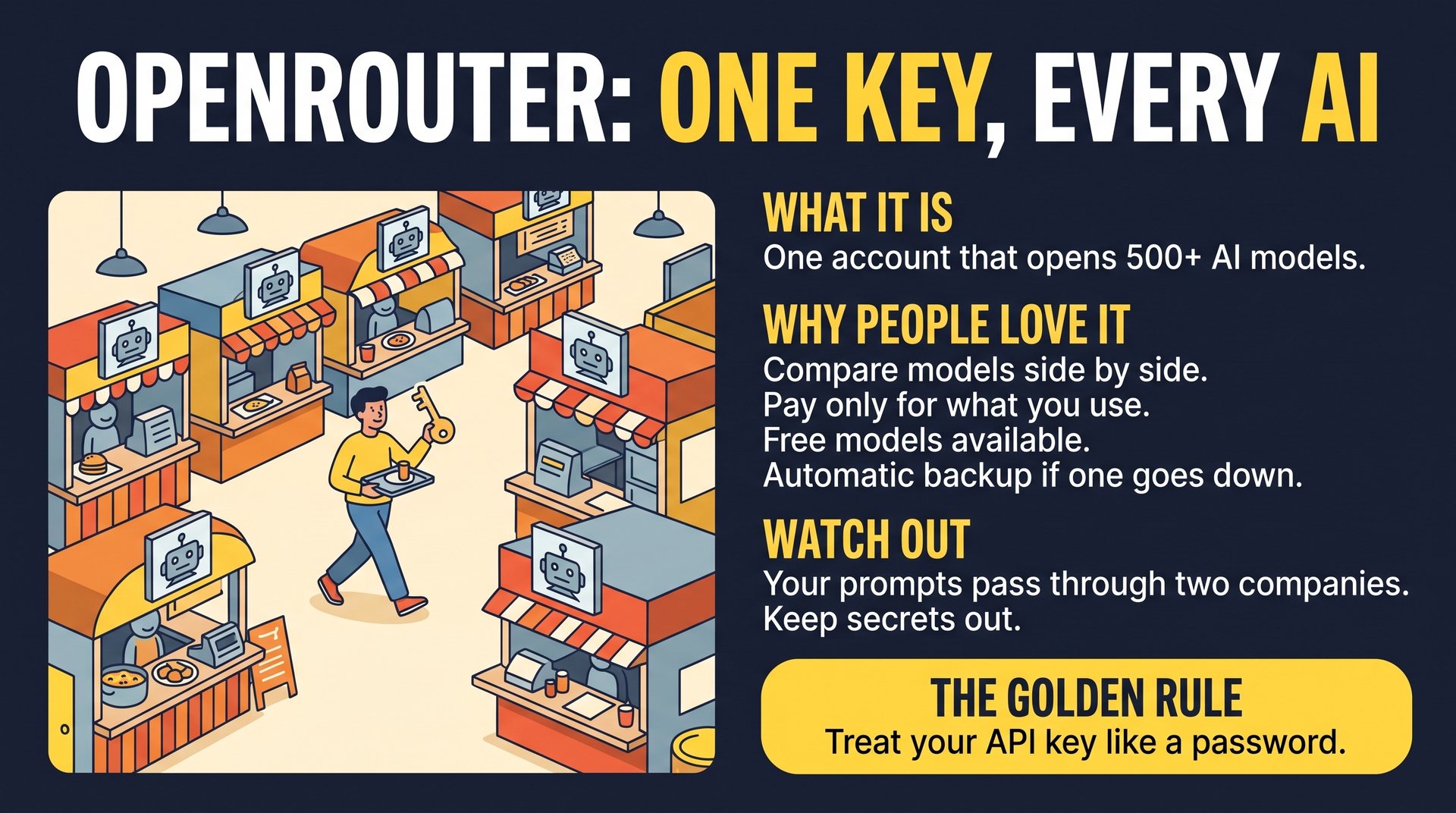
Think of a food court
Every AI company is like a restaurant with its own counter, its own menu and its own cash register. OpenRouter is the food court. One tray, one bill, and dozens of restaurants to choose from.
OpenRouter is a service that gives you access to more than 500 AI models from over 80 providers (OpenAI, Google, Anthropic, Meta, xAI and many open models) through a single account.
😩 Without OpenRouter
A separate account, a separate subscription and a separate bill for every AI you want to try.
😌 With OpenRouter
One account, one balance, and a menu of hundreds of models. Switch with a click.
🌟 Five reasons people love it
- ⚖️ Compare side by side. At openrouter.ai/chat you can ask the same question to several models at once and see which answer you like best. A perfect companion to the AI Leaderboard lesson in Level 2.
- 💳 Pay only for what you use. Instead of a monthly subscription for each AI, you add credits and spend them as you go. It pairs nicely with the Audit Your AI Subscriptions lesson.
- 🆓 Free models. Model names that end in
:freecost nothing to use, within limits. - 🛟 A backup plan. If one provider goes down, OpenRouter can automatically switch to another.
- 🔑 One key for many apps. Lots of AI tools let you plug in your own key, and one OpenRouter key opens every model.
📖 Words to know
- API key
- A long secret code that lets an app use your account. Treat it like a password: never post it online or paste it into a chat.
🪜 Get started
- Create a free account at openrouter.ai.
- Browse the models. You can filter for free ones.
- Open the Chat page and add two or three models side by side.
- Later, if you like it, add a few dollars of credit and create an API key to use in other apps.
⚖️ Try It Yourself: The Side-by-Side Test
Open openrouter.ai/chat, add three models (include one free one), and paste this question to all of them:
Explain the "K-Curve" of AI adoption to a farmer in four sentences, then give one practical tip.
- Which answer was the clearest?
- Which was the shortest, and which was the most detailed?
- Would you pay for the best one, or is the free one good enough?
✅ Great for
- Curious people who want to compare AIs
- Anyone who wants choice without five subscriptions
- Builders connecting AI to their own tools
⚠️ Watch out
- If one subscription already meets your needs, you may not need it
- Your prompts pass through both OpenRouter and the model's provider, so keep sensitive information out. For truly private work, use AI on Your Local Machine
📊 Excellent Reports
Excellent Reports
"Ask for a page, not a wall of text."
On any big AI project, your AI will need to report progress, explain a problem or ask you questions. Left alone, it uses the chat window: long blocks of text that are tiring to read and soon scrolled out of sight. Chat scrolls away. A page stays.
So ask for a page that is beautiful, color-coded and easy to follow. Reports, problems and questions stop being a chore and become a pleasure.
Think of a car dashboard
Your car never hands you an essay about the engine. It gives you a dashboard. One glance tells you everything. Green means all is well, a red light means stop, and the gauges that matter most are the biggest.
An excellent report is a dashboard for your project.
😩 The chat window
A long block of text. Everything looks equally important, so the one decision you must make hides in paragraph nine. By tomorrow it has scrolled away.
😍 An excellent report
What matters most is big, on top and color-coded. Details fold away. You answer with a click. Tomorrow it is still there, up to date.
🌟 Five marks of an excellent report
- 🔝 Big on top. The most important thing comes first, and largest. Lesser things sit lower.
- 🗂️ Folded away. Minor details collapse until you click. Nothing is lost, and nothing is in your way.
- 🖱️ Click to answer. Buttons and boxes replace typing, and a Copy My Answers button carries your choices back to the AI.
- ✨ Beautiful and alive. Elegant design and gentle animation make it a pleasure to open.
- 🔄 Always current. The AI updates the same page as the project moves on, so you have one place to look.
Color is the fastest language on a page. A simple code works well:
- Needs you now. Work is blocked until you act.
- Your call. A decision only you can make.
- Good to know. Nothing to do but read.
- Done. Finished, with nothing left to do.
✍️ The report prompt
Paste this the moment your AI starts to report, explain or ask:
Please give me a clear status report. Design it as a local HTML page that makes the next step obvious.

- Put what matters most at the top, big and bold. Let lesser things sit lower, and fold the least important away.
- Use great color coding: 🟢 done, 🟡 needs my decision, 🔴 needs me now, 🔵 good to know.
- Use plain words, clear structure, indentation and emojis, so I can take it in at a glance.
- Wherever you need me, let me click or type my answer. Add a "Copy My Answers" button so I can paste them back to you.
- Make it beautiful and elegant, with gentle animation.
- Keep it in one file and update that file as we make progress. When it is ready, open it in my browser.
🔁 Change the first line to fit the moment
🪜 How to use it
- Spot the moment. Your AI starts a long report, explains a problem or asks questions in the chat.
- Paste the prompt, with the first line that fits.
- Open the page. The AI saves it as a file and opens it in your browser.
- Answer with a click. Press Copy My Answers, then paste them into the chat.
- Keep the same page. As the project moves on, ask the AI to update it.
🔗 Best partner: an AI that can create files on your computer, such as Google Antigravity from earlier in this section.
📖 Words to know
- HTML file
- A web page saved as a file. Double-click it and your browser opens it. A local one lives on your own computer, so only you can see it, unless you share it.
🥧 Try It Yourself: The Potluck Planner
Paste this into your AI and let it start asking in the chat:
I'm organizing a potluck dinner for 40 people at our church. Ask me your five most important questions.
When the questions arrive as plain text, paste the report prompt with the Questions line. Then check:
- 🔝 Is the most important question at the top?
- 👀 Can you take it in at a glance?
- 📋 Press Copy My Answers and paste them into the chat. Does the AI understand them?
- ✏️ Ask for one change in plain words, such as "Make the text bigger and the colors calmer."
✅ Great for
- Big projects with many moving parts
- Anyone who gets lost in long chat answers
- Decisions that need a click, not an essay
⚠️ Watch out
- A beautiful report can still be wrong. Beauty is not proof, so check the facts that matter
- It may hold private details. Keep it on your computer, and read it before you post or send it anywhere
- If your AI cannot save files, ask for the page as one block of code, plus steps to save and open it