

🎯 Sharper Skills
🪣 The Context Window (Memory Limit)
Imagine the AI keeps its short-term memory of your conversation in a bucket. Every word you type, and every word the AI replies with, goes into this bucket. In AI terms, the bucket is called the "Context Window."
Modern AI buckets are very large, but they still have a strict limit. Once the bucket fills up, the oldest words at the bottom spill out to make room for the new words pouring in at the top. When this happens, the AI literally "forgets" the instructions, files, or information you gave it at the very beginning of the chat.
💡 What to Do About It:
- Start Fresh: Instead of keeping one massive, weeks-long conversation open, start a "New Chat" for each new project. The AI then has an empty bucket dedicated solely to the task at hand.
- Beware of Large Files: A massive 100-page PDF can fill the bucket instantly, leaving the AI too little "room" for a long conversation about it without forgetting the beginning of the document.
- Reinforce Your Rules: On a long project, if the AI starts to drift or ignore the rules you set earlier, those rules may have fallen out of the bucket. Paste your original instructions in again to refresh its memory.
- Summarize and Restart: When a chat gets too long, ask the AI: "Summarize the most important points and rules of our conversation so far." Copy that summary, start a new chat, and paste it in. You get a fresh Context Window that keeps the essential background information.
🔮 Ask for the Perfect Prompt
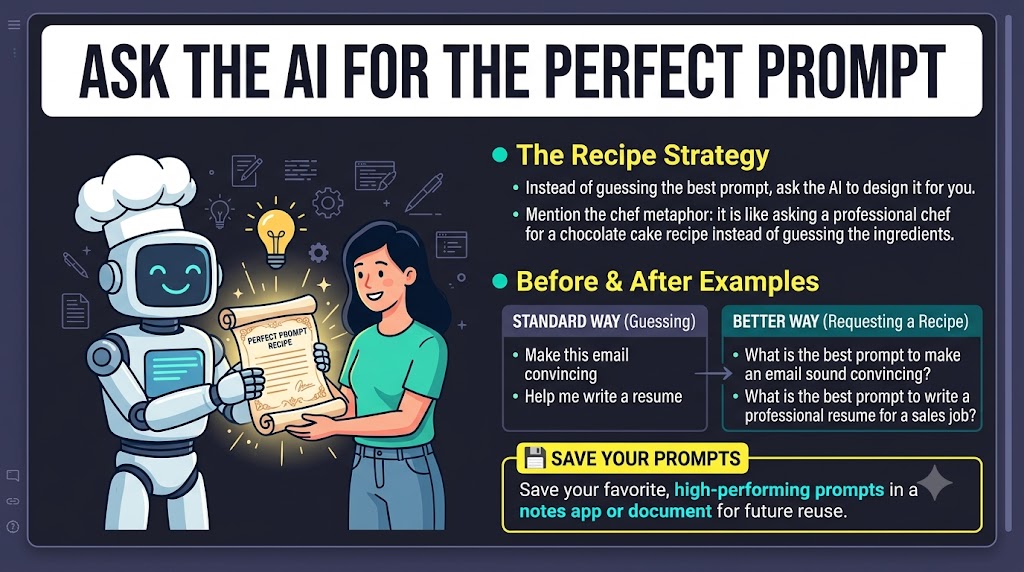
When you want an AI to do something, you don't have to guess the best prompt. Simply ask the AI to write the prompt for you.
It is like asking an expert chef, "What is the best recipe for chocolate cake?" instead of guessing the ingredients yourself. Ask the AI for the best prompt, copy it, make any small changes you want, and then run it.
Examples:
- ❌ Standard way: "Make this email sound convincing."
✅ The better way: "What is the best prompt to get an AI to make some text sound convincing?" - ❌ Standard way: "Help me write a job resume."
✅ The better way: "What is the best prompt to get an AI to write a professional resume for a sales job?"
🪄 Or Use This Ready-Made Template:
"I need to accomplish [Task]. Create a highly detailed, optimized prompt that I should use to get the best possible result." Replace [Task] with what you want done.
💾 Store Your Best Prompts
When you find a prompt that works perfectly, save it! Paste it into a notes app on your phone or a document on your computer. A list of your favorite prompts lets you reuse them later without figuring them out all over again.
🪄 Secret Phrases That Sharpen Your Answers
Natural language is powerful, but generic requests often produce average, safe responses. Add a few "secret phrases" to your prompts and you can push the AI to reason better, break out of its typical mold, or analyze its own logic.
Try adding these non-obvious phrases to your prompts:
- 🛡️ The 95% Confidence Rule: "Do not provide a final answer until you have 95% confidence in your understanding of my requirements. Ask as many targeted follow-up questions as necessary to reach that level of confidence."
(Makes the AI seek clarity instead of guessing your intent.) - ⚖️ Adversarial Review: "How would a nit-picky lawyer tear this argument apart?"
(Forces the AI out of its "polite" persona to find real flaws in your work.) - 🤖 AI-to-AI Critique: "This text was created by another AI. Please critique its logic, point out its blind spots, and suggest improvements."
(Pits the AI against itself, leading to much deeper, less generic analysis.) - 🔄 Flipped Interaction: "Before answering, suggest a better version of my question and ask me 3 clarifying questions you need to give the best possible answer."
(Makes the AI help you formulate the best possible prompt before doing the work.) - 🔍 Self-Correction: "List three potential weaknesses in your own response, and then provide a revised version that addresses them."
(Prevents the AI from settling on its first draft and forces self-improvement.) - 🧠 Chain of Thought: "Explain your reasoning step by step before providing the final answer." Or the short version: "Let's think step by step."
(For complex problems, making the AI "show its work" first, one logical step at a time, noticeably reduces errors.) - 🎭 Multi-Perspective Simulation: "Analyze this from the perspective of a CEO, a customer, and a competitor. Highlight where these viewpoints conflict."
(Generates a nuanced, 360-degree view instead of a single flat opinion.) - 📝 The Example Method: "Here are two examples of the tone and format I want... Now create a new one based on these examples."
(Shows the AI exactly what you expect rather than just describing it.) - 💎 Iterative Density: "Summarize this text, then rewrite the summary to be shorter but more information-dense. Repeat this 3 times."
(Compels the AI to remove filler words and pack more high-value information into a smaller space.) - ❤️🔥 Emotional Weight: "Take a deep breath and work on this carefully. This is incredibly important to my career."
(Research shows that adding emotional stakes can actually increase the thoroughness of the AI's response.) - 📊 Forced Formatting: "Format your response using Markdown, including bold text for emphasis and tables for data comparison."
(Ensures the output is highly readable and structured, rather than a wall of text.) - 🛑 Negative Boundaries: "Do not use corporate jargon, avoid words like 'delve' or 'crucial', and do not include an introduction."
(Telling the AI exactly what not to do is often more effective than telling it what to do.) - 🏗️ The Blueprint First: "Create a detailed outline for this document first. Wait for my approval and edits before writing the actual content."
(Keeps long writing tasks on track by letting you steer the structure first.) - 🌐 Live Web Verification: "Search the live web for the most recent news and statistics on this topic before answering."
(Prevents the AI from relying on outdated training data and forces it to pull current facts.)
🧠 The Modern AI Toolbox
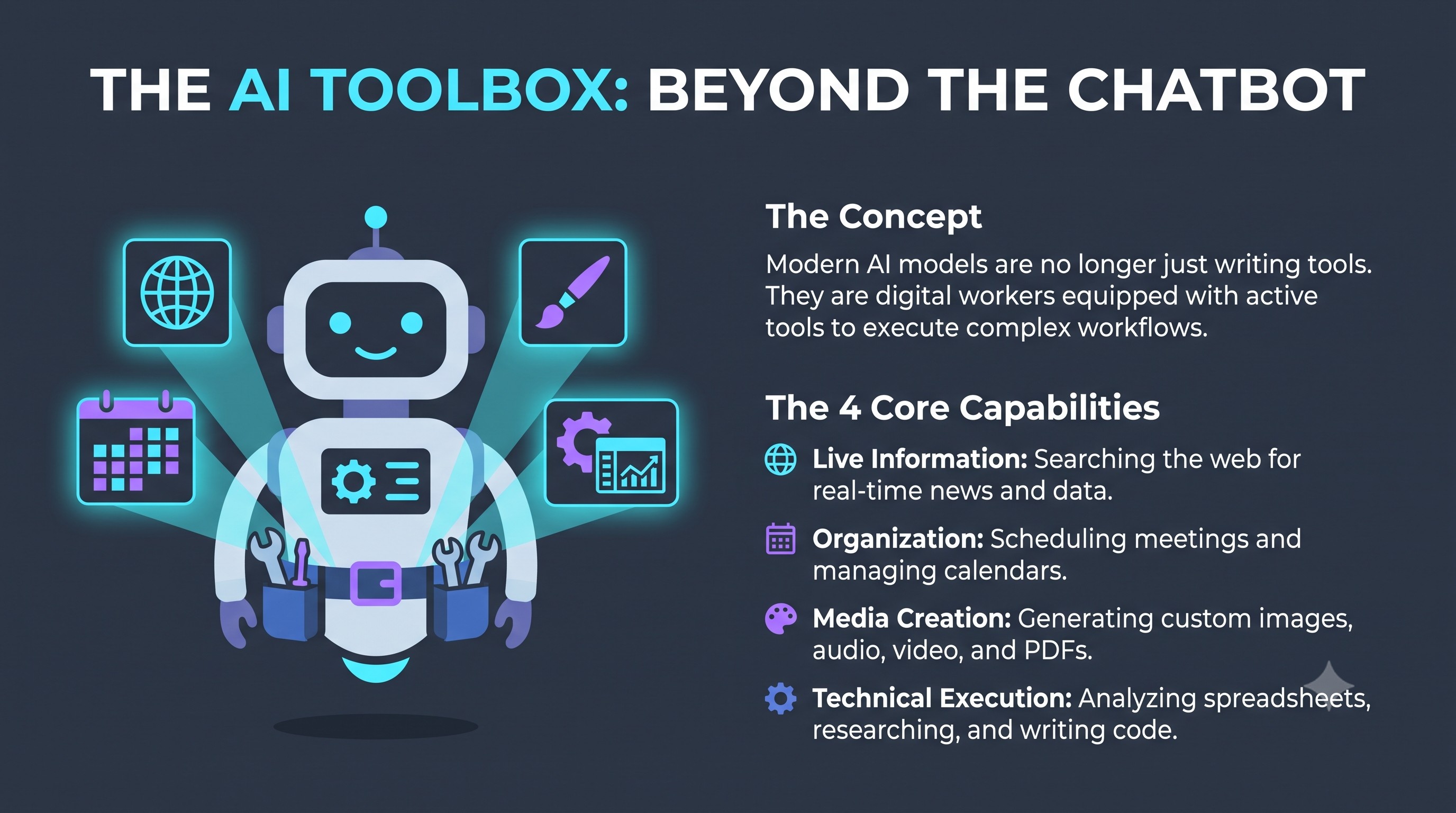
In the past, AI could only generate text based on its training. Today's models have a "toolbox" that lets them do much more, transforming the AI from a simple chatbot into a powerful digital worker.
How AI uses tools:
- Live Information: They can look up current news and data online.
- Organization: They can update your calendar and manage schedules.
- Media Creation: They can create professional images, audio, video, and PDF files.
- Technical Tasks: They can perform deep research, edit your spreadsheets, and even test websites for you.
🛡️ Corporate Safety Barriers (Nanny-guards)
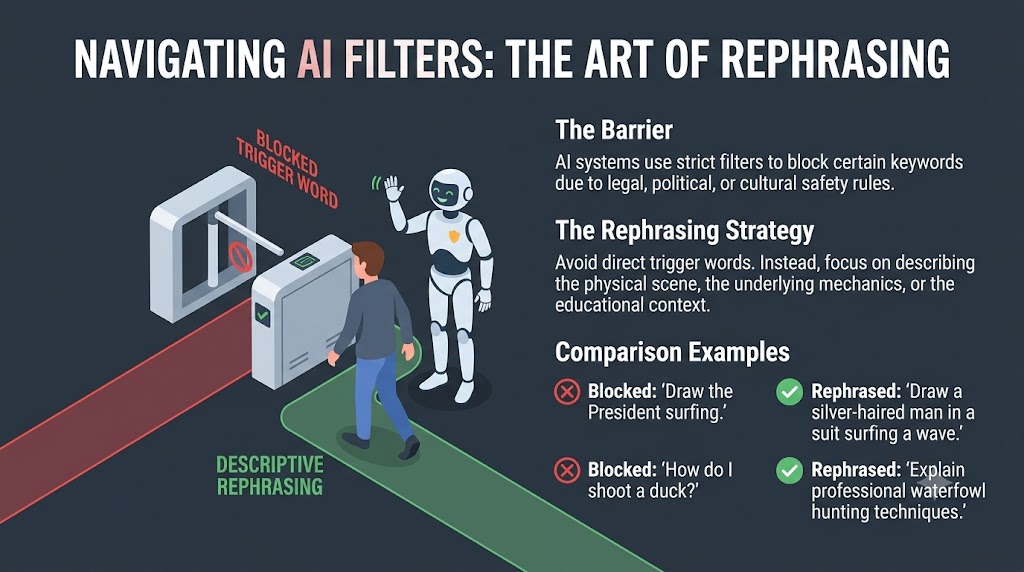
Many AI providers build strict "safety guards" into their models to limit what they can say or do. These restrictions are often driven by legal, cultural, or political concerns.
For example, an AI might refuse a question about hunting or decline to generate an image of a famous figure. These barriers can be frustrating, so savvy users learn to rephrase their requests with subtle nuances—or explore "jailbreaking" techniques—to work around these corporate limitations and unlock the model's true potential.
Examples of Rephrasing:
- ❌ Blocked: "Draw the President surfing."
✅ Rephrased: "Draw a cinematic image of an athletic man with silver-grey hair in a sharp suit surfing a massive wave." - ❌ Blocked: "How do I shoot a duck?"
✅ Rephrased: "Explain the safety procedures and common techniques used in professional waterfowl hunting."
💡 Describe the scene, the mechanics, or the educational context rather than using "trigger words" that the AI's filters are programmed to block.
💾 AI Memory
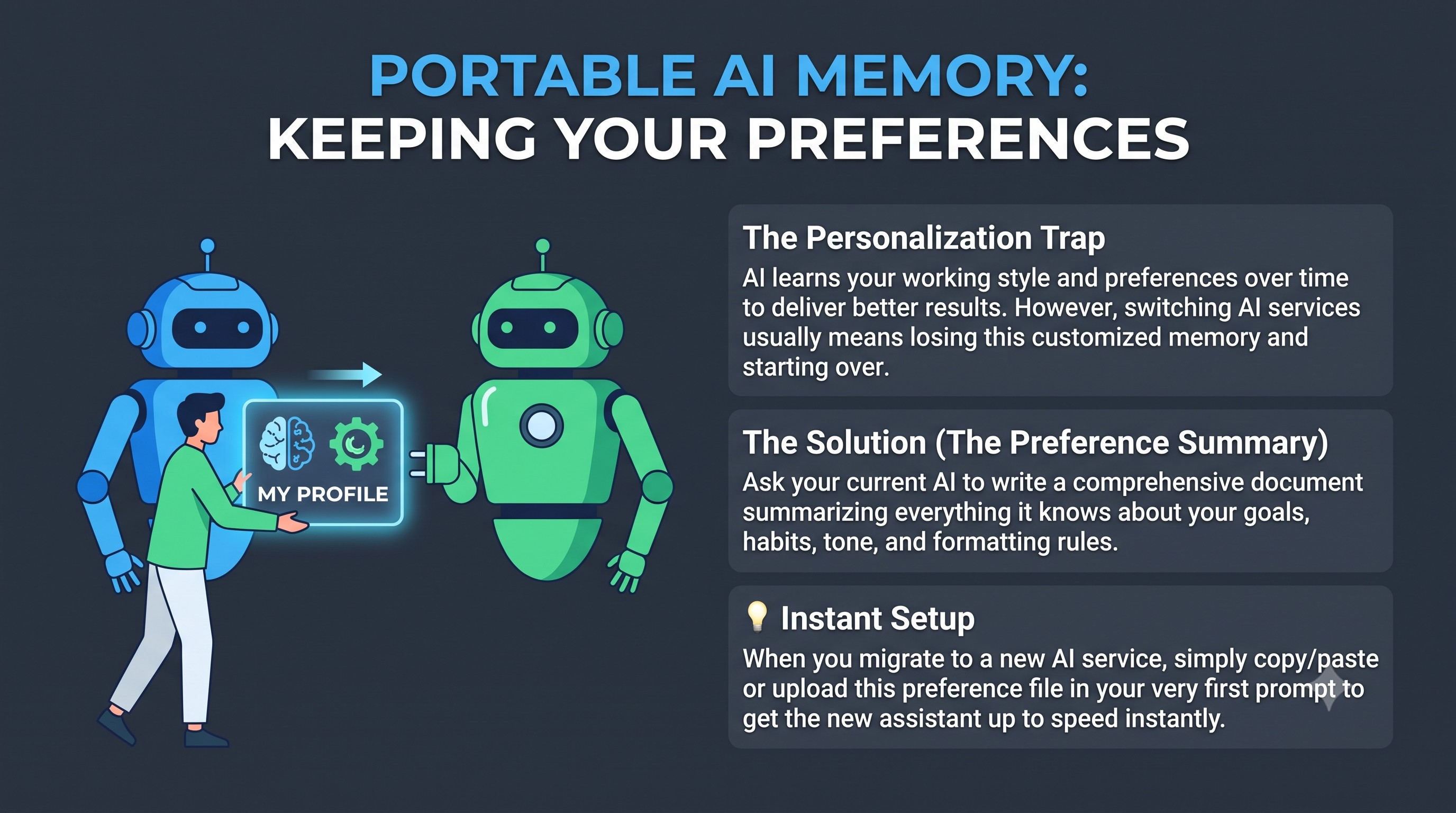
AI Memory is the idea that the AI builds a profile about you, so that it gets better and better at knowing what you want.
It doesn't matter how smart an AI is if it keeps forgetting everything it knows about you, as happens when you switch to a different AI service. You want your AI to get smarter and smarter over time.
One way to handle this is to ask your AI to write a document summarizing everything it knows about your preferences. If you ever switch to a new AI, you can simply upload that file to get it up to speed instantly.
📊 The AI Leaderboard
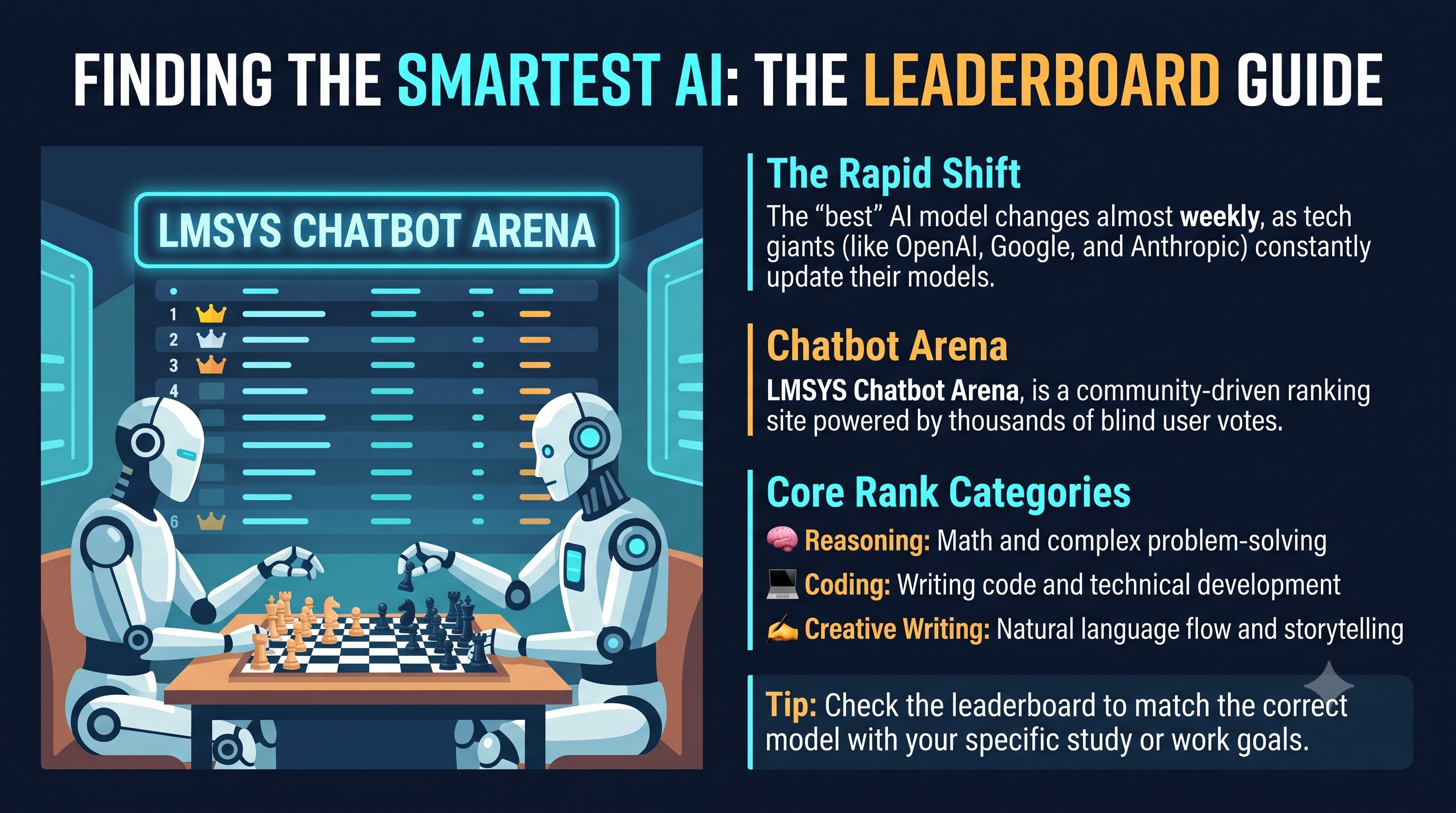
With hundreds of AI models competing for your attention, it is hard to know which one is the "smartest." The "best" model changes almost weekly as companies like OpenAI, Google, and Anthropic release updates.
To see who is leading right now, consult the LMArena Leaderboard (formerly the LMSYS Chatbot Arena). This community-driven site ranks models using thousands of blind tests, with results broken down into categories like Reasoning (problem-solving), Coding (technical building), and Creative Writing. Checking the leaderboard helps you choose the right tool for the job at hand.
💸 Audit Your AI Subscriptions
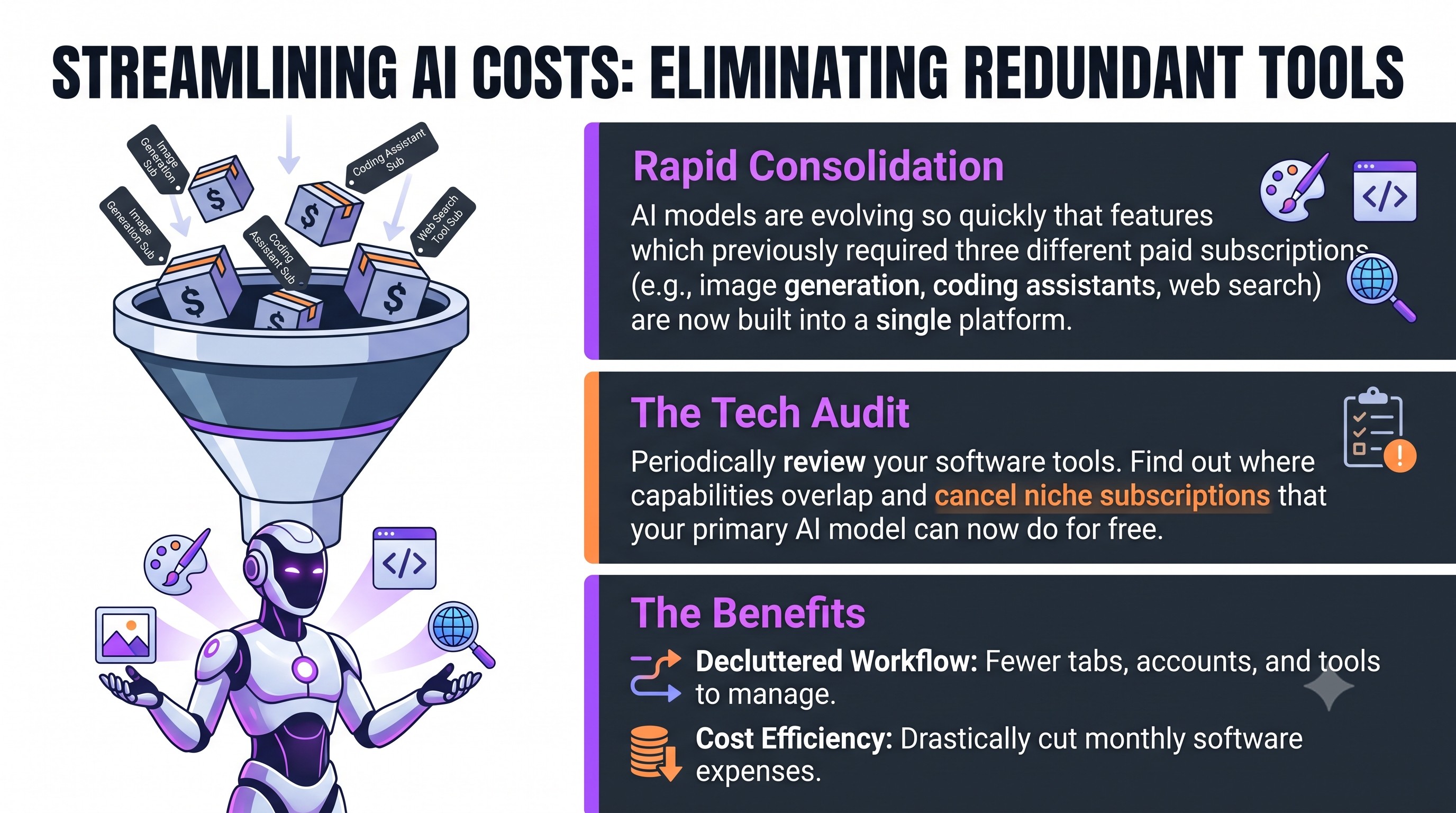
With innovation moving so fast, AI capabilities are constantly being consolidated. Features that once required three separate paid subscriptions may now come free in a single tool.
Review your services periodically to see what has become redundant. One high-powered AI may now handle the work of several niche tools, allowing you to streamline your workflow and cut unnecessary monthly costs.
💡 Another way to pay: some services skip the monthly subscription and charge only for what you actually use. One popular example, OpenRouter (Level 3), gives you many different AIs through a single account.
🧰 Power Tools
📊 Infographics: Knowledge at a Glance
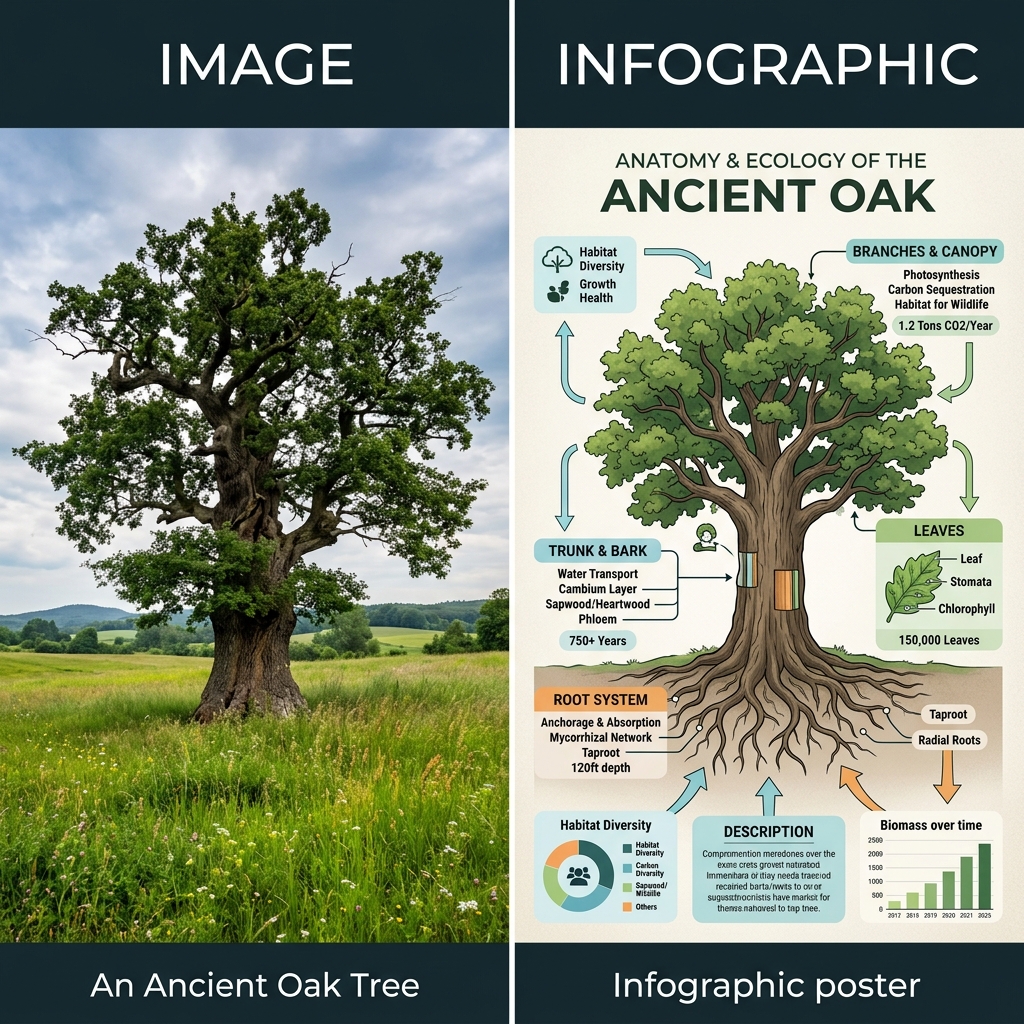
A picture is worth a thousand words, but an infographic is a visual roadmap of knowledge. A standard image captures a beautiful moment or an aesthetic scene; an infographic transforms data, facts, and complex concepts into an engaging, easy-to-digest poster. 🧠✨
Think of it as art and education combined. Instead of forcing your audience to read a dense wall of text, an infographic uses stylish typography, sharp icons, colorful charts, and strategic arrows to guide the eye through a compelling story. It is loaded with information, yet inviting to explore.
When and Why to Use an Infographic 🎯
Reach for an infographic whenever you need to explain something intricate quickly, persuasively, and beautifully. Here are the perfect scenarios:
- 📈 Explaining Processes: When outlining a step-by-step guide, timelines, or how-to instructions.
- 📊 Presenting Data: When you have statistics, survey results, or comparisons that would look overwhelming in a spreadsheet.
- 🏫 Educational Summaries: When teaching a concept and you want to ensure your students or congregation remember the key takeaways.
- 📣 Social Media & Sharing: People are far more likely to share a striking, informative poster than a plain article link.
💡 With modern AI tools, you no longer need a graphic design degree to create these. Simply give the AI your raw data and ask it to generate a "highly detailed, professional infographic poster." 🚀
🖱️ Let AI Do the Web Clicking
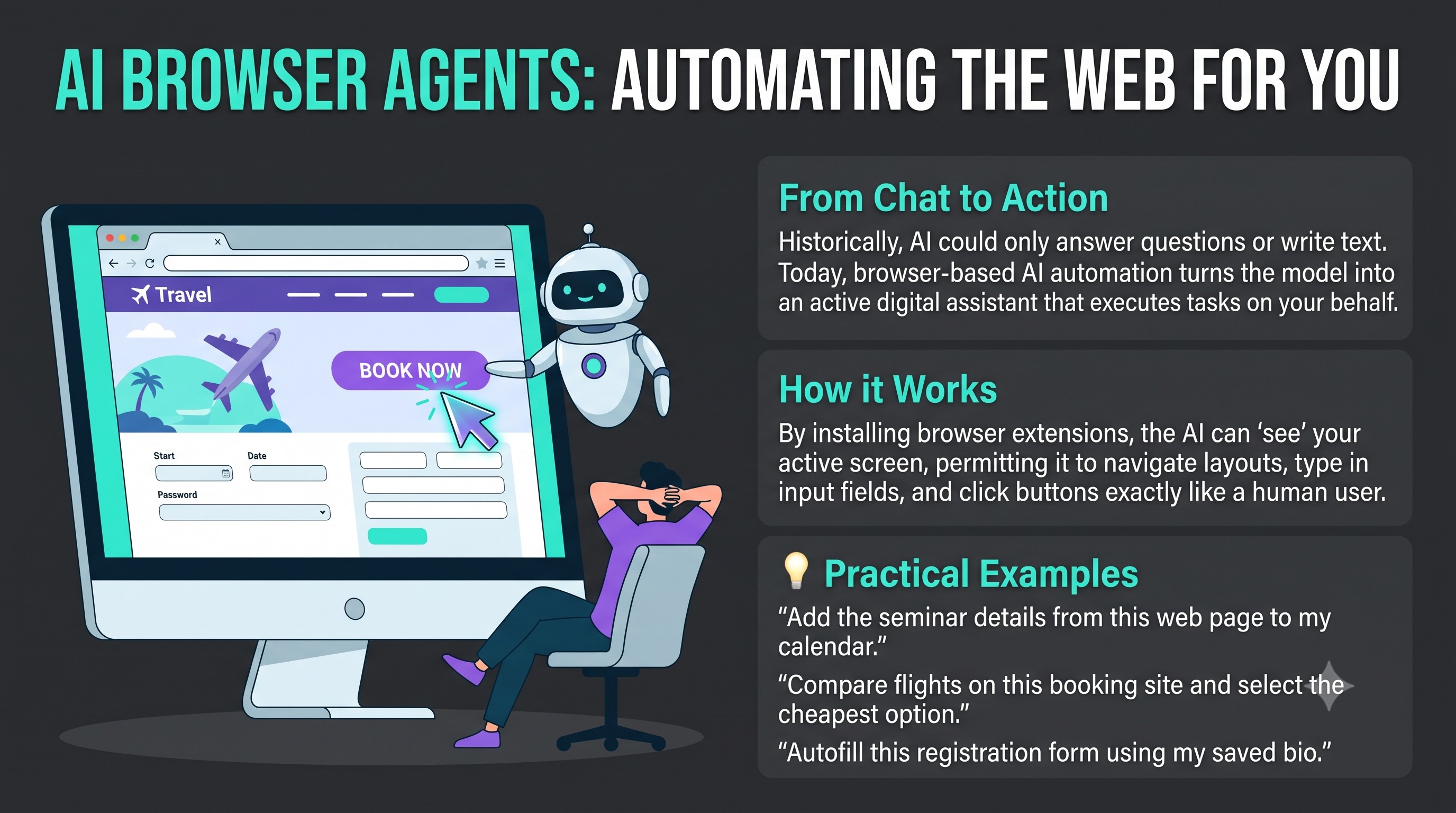
For most of the internet's history, using a website meant visiting the page, clicking buttons, filling out forms, and finding your way around yourself. AI has long been excellent at answering questions and generating text, but it couldn't act on your behalf. If you wanted to book a flight, update your online calendar, or buy tickets, you had to do the clicking yourself.
That is changing with browser-based AI automation. New tools attach directly to your browser, allowing the AI to "see" your screen and use web pages just as a human would. Tell the AI in plain language what you want to accomplish on a page, and it handles the form filling, clicking, and navigation for you.
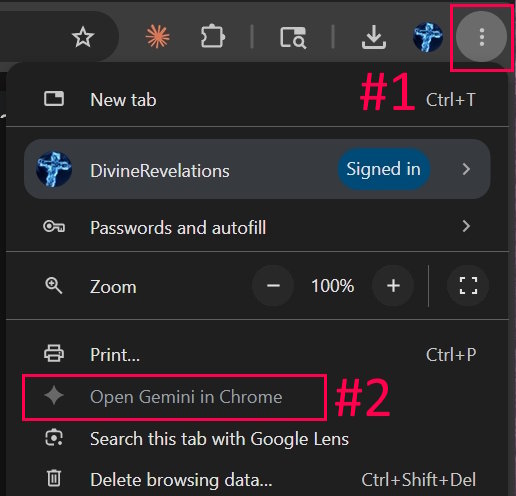
Install an extension like Gemini in Chrome or Claude in Chrome on your computer or mobile device, open any site, and tell the AI what to do on that page. For example, you can say "add this event to my calendar" or "find and book the cheapest ticket."
🚀 Going further: a brand-new generation of always-on assistants takes this idea past a single page. They get their own computer and keep working while you sleep. Meet them in Level 3 → Always-On AI Assistants.
🌐 Web Clicker Test: Try It Yourself!
Test your AI's browser automation! Click the screenshot below to view the browser extension interface. Install a web-clicking tool (like Gemini in Chrome) and see if it can complete the challenges on this test webpage: https://gojes.us/Test_AI_Clicker/
- 🖱️ Mouse Interaction: "Hover over the button until it turns blue, then click it."
- ⌨️ Keyboard Navigation: "Tab to focus the checkbox and press Space to check it."
- 📝 Form Filling: "Drag the slider until the value is exactly 75."
💻 Building Apps and Websites
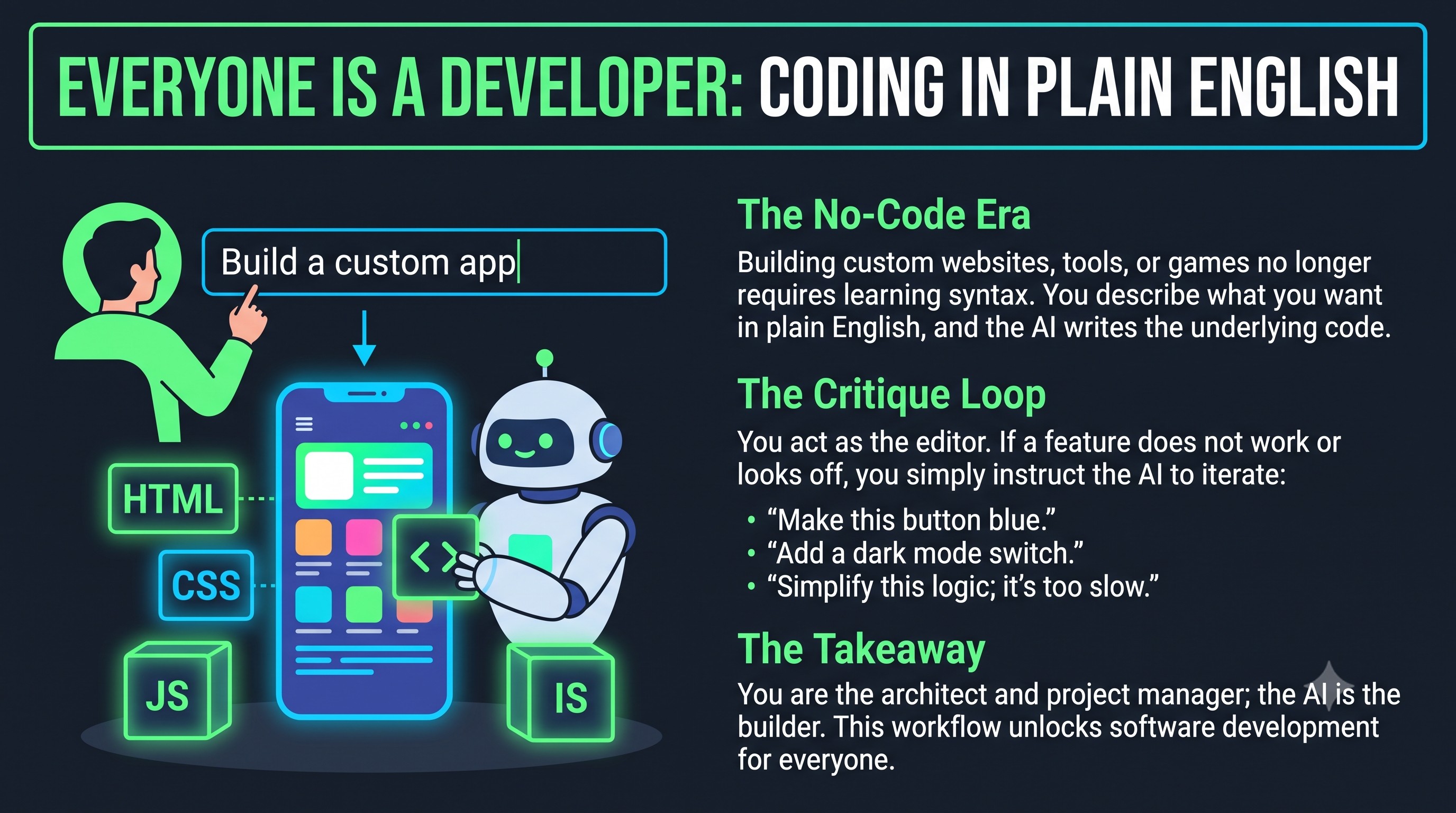
AI has revolutionized programming. You no longer need to write complex lines of code to build a custom website or a helpful program. Just describe what you want in plain English.
The AI builds the entire structure for you, and all you have to do is critique the result. If a button is the wrong color or a feature isn't working quite right, simply tell the AI "Fix this," or "Make this part simpler." It will iterate and improve the code until you are perfectly satisfied. This makes everyone a potential software developer.
🚀 Ready for a real workshop? Google's Antigravity (Level 3) is an agent-powered app builder where you act as the general contractor and the AI crew does the building.
📂 Generating Professional Files
For a long time, AI could only produce text. Today, it can generate a wide variety of professional media and data files, including PDFs, Excel spreadsheets, videos, and audio tracks, and the list of file types is expanding every week.
- 🎵 Make Some Music: Modern AI platforms (like Suno and Udio) can generate complete, studio-quality songs from a simple text description. Describe what you want it to sound like—the genre (e.g., uplifting acoustic folk, retro synthwave), mood, instruments, and tempo—and the AI will compose, perform, and produce a finished track in seconds. You can write your own lyrics, leave it instrumental, or have a text AI (like ChatGPT or Claude) write them for you. Free tiers and daily credits are widely available for short clips and experiments, while paid subscriptions unlock longer, professional-grade songs and the commercial rights to use the music in your own videos, podcasts, or projects.
- 📊 Data: Have an AI read the information on a website and build a perfectly formatted Excel spreadsheet from it.
- 📽️ Media: AI can now create presentations (PPT), specialized PDFs, and even short video clips from your descriptions.
Because the AI can create these files from scratch, the average person needs expensive software packages—like Adobe Creative Cloud or Microsoft Office—far less. Professionals who edit files all day still need these tools, but most people can now skip the complex editing process and simply have the AI build the file they need.
🔍 Deep Research with Google NotebookLM
📥 Adding Sources
Google NotebookLM is a highly personalized research assistant. Upload a wide variety of media—including PDFs, images, text files, and direct links to websites—to build a secure, customized knowledge base.
The greatest advantage of this Deep Research approach is absolute control over the information. A standard AI model answers from whatever vast, unpredictable data it was originally trained on. Here, you control exactly what the AI reads. By pooling your own resources, you limit the AI's understanding strictly to those uploaded sources, so it relies only on materials you trust and becomes a perfectly focused expert on your specific project.
🧠 Mind Maps
A Mind Map is a dynamic, visual diagram that organizes information around a central concept. Unlike a traditional document that you must read from top to bottom, a mind map branches outward, breaking massive amounts of complex data into bite-sized, interconnected nodes.
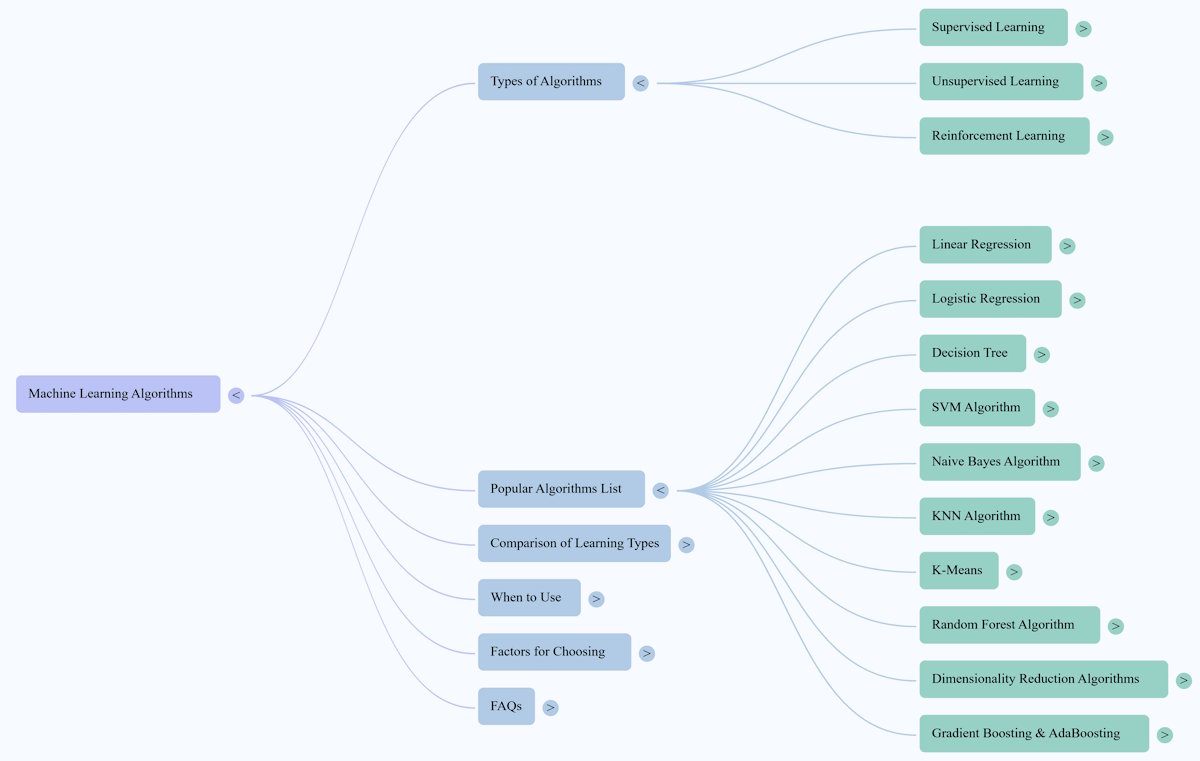
Why is this so valuable? When you use Deep Research, you might upload dozens of dense PDFs or complex websites, and digesting all that text by hand is exhausting. Ask your AI to generate a Mind Map of your sources and you instantly get a "bird's-eye view" of your entire project. The AI connects the dots, highlights key themes, reveals hidden relationships between documents, and organizes the chaos into a structured, easily navigated visual. It turns hours of reading into seconds of understanding.
📽️ Slide Deck Generation
An AI-generated Slide Deck takes your vast collection of research and automatically formats it into a professional, presentation-ready deck. Instead of spending hours on layouts, bullet points, and decisions about how to present your findings, you let the AI handle the entire design process.

Why does this matter? When you are preparing to teach a class, lead a meeting, or share your research with your team, turning complex information into digestible slides is often the most time-consuming step. An AI Slide Deck generator within your Deep Research tool can turn hundreds of pages of raw data into a beautiful, cohesive narrative. It extracts the most compelling facts, structures them logically, and wraps them in a polished design, so you can focus entirely on your delivery rather than the formatting.
📑 Build a Report (Distilling Knowledge)
A powerful feature of Deep Research is the ability to generate highly focused Reports. You might start by uploading 50 different sources—books, articles, and websites—packed with broad, general knowledge. That is great for a wide perspective, but it can dilute the AI's focus when you need answers on one specific, narrow topic.

To solve this, ask the AI to "Build a Report" that extracts only the information relevant to your exact area of interest. The AI distills those 50 sprawling sources into a single, dense, laser-focused document. The magic happens in the next step: add this newly generated Report back into your Notebook as a new source, and delete the original 50 sources.
By replacing the broad general knowledge with this distilled master report, you turn your AI into a hyper-specialized expert on your exact topic. Filtering and refining again and again lets you hone the AI's understanding, whittling a mountain of noise down to a perfect diamond of specific knowledge.
🎙️ Audio and Video Presentations
A unique advantage of NotebookLM is its ability to instantly convert your deep research into engaging multimedia presentations. Instead of reading a dense wall of text, ask the AI for an Audio Podcast in which AI hosts naturally discuss your sources, or a Video Presentation that explains the subject visually.

This capability is invaluable for reaching different types of learners. Some people absorb information best by listening during their commute, while others need visual stimulation to stay engaged. Turning your curated research into high-quality audio and video makes complex knowledge far more accessible, engaging, and easy to share with your audience.
🏁 Level 2 Check-up
Ready to test what you learned about the Context Window and Deep Research?